
HOW TO TRANSFER FILES FROM SHAREIT TO IPHONE | A COMPLETE GUIDE
Shareit is a fast, cross-platform app that allows users to send and receive files in seconds. This process is simple when transferring data between Android devices or iOS devices to an Android device. In this blog, we covered all the steps to send and receive data from Android to iOS devices.
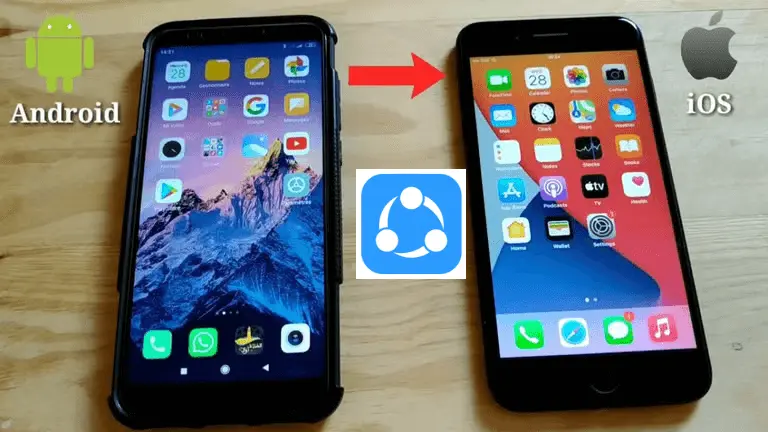
METHOD TO TRANSFER FILES FROM SHAREit TO IPHONE
These are the simplest methods for transferring files using SHAREit to your iPhone. Follow these steps to expedite the process.
OPEN YOUR SHAREit
First, open your Shareit and select the file you want to send, and click on the send option. You can send your videos, pictures, documents, and music without the need for the internet or any cable. Once selected, the data will wait to connect to the receiver’s device using the QR Scan option.
RECEIVE ON YOUR IPHONE
Now, open Shareit on the receiver device and tap on the receiver. After that, if you see the sender device name, tap on it, and if you do not find the sender name. Then, using the QR connection option and scanning the sender code. After this process, you can receive data from the sender in a few seconds.
FIND YOUR FILES ON IPHONE
This is the most important step in data sharing and receiving because the file does not automatically save to your gallery. Open Shareit on your iPhone and tap on files. Here, you can see all the received files, like documents, music, and applications. To save files to your gallery, click on the three dots next to it and select Save.
CONCLUSION
In conclusion, Shareit is a reliable tool for sending and receiving data from Android to iPhone. In this article, we covered all methods to send files from Android and receive them on iPhone, and how you can save this data in the gallery. If QR Scanning does not work, we covered alternative tools for Shareit in detail.